
Anyone wanting to use a desktop program under Linux without modifying their existing system needs a special environment known in technical circles as a sandbox. Of course, you can also create a virtual machine with VMware or Oracle’s free VirtualBox, which simulates an entire computer including its operating system, and install programs within it for testing purposes to see how they behave. However, this option consumes a considerable amount of resources and is also somewhat resource-intensive.
But there is also a more lightweight virtualization technology available under Linux that employs various security features not available under Windows. These include, among other things, permissions at the file and directory level. But don’t worry, we won’t delve too deeply into the many details of the individual solutions; instead, we’ll focus primarily on the how and why.
On the server side, there are already proven virtualization programs for isolated and secure environments, such as LXC (Linux Containers) and the widely used Docker. On the desktop, programs like FireJail or BubbleWarp are commonly used to run applications with a graphical user interface in a restricted environment. Before we delve into the details of how this works, let’s consider a few scenarios that explain why all this effort can be worthwhile.
One of the oldest reasons for sandboxing is to create an environment where different versions of software need to be installed simultaneously for testing or development purposes, and the installation routine doesn’t allow this. Typical behavior in such cases is to first uninstall the old version of the software to install the new one, or simply to update the existing version. Setting up a sandbox, a kind of testing environment, helps in these situations.
Another reason for using sandboxes is to isolate programs for security reasons. Here, the primary concern is protecting privacy. The goal is to prevent a program from accessing other data on the computer. Therefore, in this context, we often refer to it as creating a “jail.” The classic example we’re talking about here is the web browser. In my opinion, I see the smartphone as far more problematic in this scenario, where this data theft is quite easy for any user to observe. Without being sarcastic, I regularly see people who fortify their computers like fortresses and carelessly distribute all their data from their smartphones to the world.
It’s an open secret in expert circles that websites, especially those of large tech companies, employ all sorts of tricks to know their users better than the users know themselves. For outsiders, these expert opinions often seem incomprehensible, which frequently manifests as resignation or indifference. To avoid delving too deeply into the subject, I’d like to illustrate just how sophisticated these methods are with a simple example. Anyone who believes that a VPN connection offers maximum privacy protection is fatally mistaken. Just because you mask your IP address doesn’t mean you can’t deduce your actual location. And you don’t even have to try very hard to do so. For example, someone who claims to be logging into the internet from Germany, but whose web browser is set to Russian as the language and Moscow as the time zone, is probably not actually in Germany. Of course, tech companies like LinkedIn or Facebook collect far more information about their users. Each individual measure might seem rather trivial in isolation, but when you combine the various possibilities, the situation changes fundamentally. That’s why it’s absolutely essential to consider security as a holistic concept.
We see that building an effective jail requires significantly more specialized knowledge and experience than simply installing software. AppAmor on Linux is a prime example. Furthermore, it’s crucial to understand that sandboxing your browser also presents challenges. These include access to hardware like microphones and cameras during video conferences, as well as file downloads and uploads. Since the browser is isolated from the rest of the system, you can’t just quickly post photos to Facebook. Anyone considering this should take the time to fully consider these implications.
Having discussed the “why” in detail, let’s move on to the “how.” I’ve already mentioned the two most popular tools, FireJail and BubbleWarp. Because this article is aimed at power users, not IT professionals with specialized knowledge, my focus is on an easy-to-use solution. That’s why I chose FireJail [1], which, although it requires downloading and manual installation, has an active community and, unlike BubbleWarp, comes with documentation.
After downloading [2] FireJail and FireTools for the corresponding distribution, both programs can be easily installed. In my case, I’m using a current Debian Linux distribution, so I downloaded the .deb files from the website and installed them easily with a simple double-click via the package manager. Of course, this also works with the standard Debian package manager, APT. However, to stay up-to-date, I prefer the first installation method.
sudo apt-get install firejail firetool
ed:~$ firejail --help
firejail version 0.9.80

Firejail is a SUID sandbox program that reduces the risk of security breaches by restricting the running environment of untrusted applications using Linux namespaces.

Usage: firejail [options] [program and arguments]I started the Firejail Configuration Wizard via the application menu.
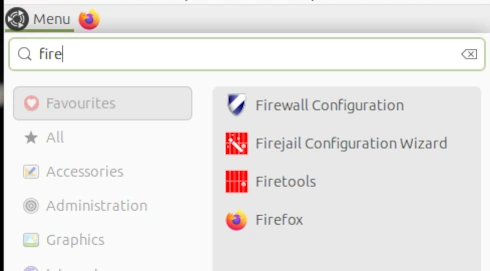
This opens a wizard for configuring applications as sandboxes. This differs from the console command in that the command line places all FireJail-supported programs into a sandbox. However, this could restrict functionality so much that it becomes unusable for everyday tasks.
sudo firecfg
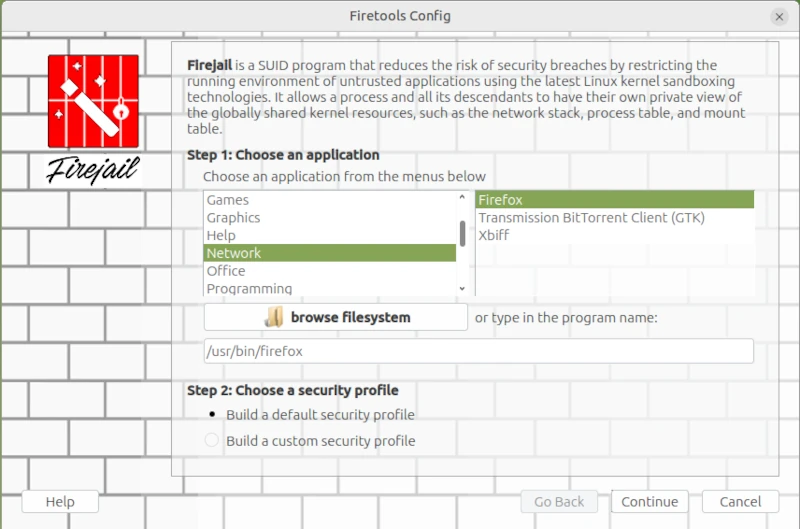
This allows you to launch applications in the sandbox via the icons in the window manager menu or file links in the file manager. This automated method currently supports the desktop environments Mate, KDE, LXDE, Cinnamon, and LXDE. Support for Gnome 3 and Unity is limited. Simply double-click the desktop icon in Firetools or use the command firetools firefox in the Bash shell. Alternatively, you can launch FireTools directly. FireTools is a graphical launcher for applications running in the sandbox via FireJail.
In my example, I configured the Firefox web browser using FireJail’s default configuration. It’s possible to use custom configurations for each installed application. The corresponding configuration files are located in the logged-in user’s home directory: ~/.config/firejail/<app>.profile and /etc/firejail/<app>.profile.
# Firejail profile for firefox
# Description: Safe and easy web browser from Mozilla
# This file is overwritten after every install/update
# Persistent local customizations
include firefox.local
# Persistent global definitions
include globals.local

# Note: Sandboxing web browsers is as important as it is complex. Users might
# be interested in creating custom profiles depending on the use case (e.g. one
# for general browsing, another for banking, ...). Consult our FAQ/issue
# tracker for more information. Here are a few links to get you going:
# https://github.com/netblue30/firejail/wiki/Frequently-Asked-Questions#firefox-doesnt-open-in-a-new-sandbox-instead-it-opens-a-new-tab-in-an-existing-firefox-instance
# https://github.com/netblue30/firejail/wiki/Frequently-Asked-Questions#how-do-i-run-two-instances-of-firefox
# https://github.com/netblue30/firejail/issues/4206#issuecomment-824806968

# (Ignore entry from disable-common.inc)
ignore read-only ${HOME}/.config/mozilla/firefox/profiles.ini
ignore read-only ${HOME}/.mozilla/firefox/profiles.ini

noblacklist ${HOME}/.cache/mozilla
noblacklist ${HOME}/.config/mozilla
noblacklist ${HOME}/.mozilla
noblacklist ${RUNUSER}/*firefox*
noblacklist ${RUNUSER}/psd/*firefox*

# uses libgdk-pixbuf and/or glycin - see #6906
#blacklist /usr/libexec

mkdir ${HOME}/.cache/mozilla/firefox
mkdir ${HOME}/.config/mozilla
mkdir ${HOME}/.mozilla
whitelist ${HOME}/.cache/mozilla/firefox
whitelist ${HOME}/.config/mozilla
whitelist ${HOME}/.mozilla

whitelist /usr/share/firefox
whitelist /usr/share/gnome-shell/search-providers/firefox-search-provider.ini
whitelist ${RUNUSER}/*firefox*
whitelist ${RUNUSER}/psd/*firefox*

# Note: Firefox requires a shell to launch on Arch and Fedora.
# Add the next lines to firefox.local to enable private-bin.
#private-bin bash,dbus-launch,dbus-send,env,firefox,sh,which
#private-bin basename,bash,cat,dirname,expr,false,firefox,firefox-wayland,getenforce,ln,mkdir,pidof,restorecon,rm,rmdir,sed,sh,tclsh,true,uname
private-etc firefox

dbus-user filter
dbus-user.own org.mozilla.*
dbus-user.own org.mpris.MediaPlayer2.firefox.*
ignore dbus-user none

# Redirect
include firefox-common.profile
Since configuring each individual application can quickly become very complex, and one must always consider what one wants to achieve with sandboxing, I refer you to the homepage [1] for further information.
On the command line, you can list all applications currently started via Firejail. This allows you to check whether the sandbox is working for the respective application. Two commands are available for this purpose: firejail --list and firejail --top. The top parameter displays the process load in the Bash shell.
However, I did notice one limitation during my test: Browsers in virtual machines, in particular, refuse to start under Firejail. This is, of course, somewhat pointless, as virtual machines already provide excellent isolation between the application and the operating system.
Fazit
In my opinion, the idea of sandboxing is quite appealing. My criticism lies more in its implementation. I would view virtualization in a more traditional way, as implemented, for example, with Docker or PlayOnLinux. A sandbox would essentially create a virtual environment on my desktop into which I could install programs in isolation, without altering the operating system. If the sandbox is deleted, all files of the installed program, including its configuration, are completely removed. However, FireJail works differently. FireJail identifies all installed programs that can be jailed, in order to run them in a so-called cage. Launching AppImages in FireJail also generally doesn’t work. Based on my experience in security and penetration testing, I consider the cost-benefit ratio, especially for FireJail, to be insufficient, and I also believe that the way FireJail works gives users a false sense of security. Updates are also a problem, as they often silently reset security-related settings to unwanted defaults.



Leave a Reply
You must be logged in to post a comment.